

Set up the Figma library
Getting BEEQ into your Figma workspace takes three steps. Once it’s done, all components and variables are available across your projects automatically.BEEQ ships as a single Figma file that contains Design Tokens/Variables, Components, and Assets (icons, illustrations, flags, logos). Everything lives in one place as of v1.0.
1
Get access and duplicate
Request access to the main BEEQ Design System file, then duplicate it to your Figma workspace.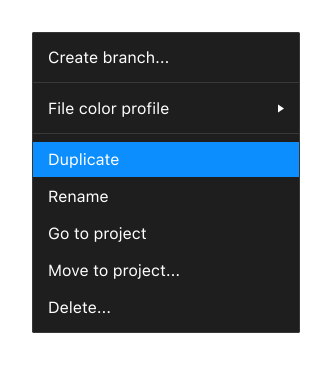
BEEQ Design System v1.0 on Figma
Open the main Figma file
2
Publish as a library
Open your duplicated file, rename it to something that makes sense for your team, then publish it as a Figma shared library via Assets → Publish library.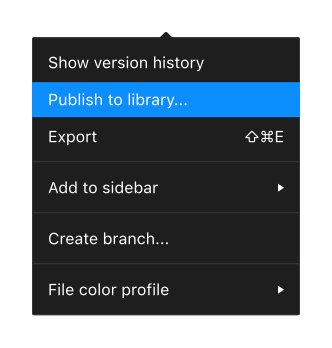
3
Enable the library
In any project where you want to use BEEQ, open the Libraries panel and enable the library you just published. That’s it.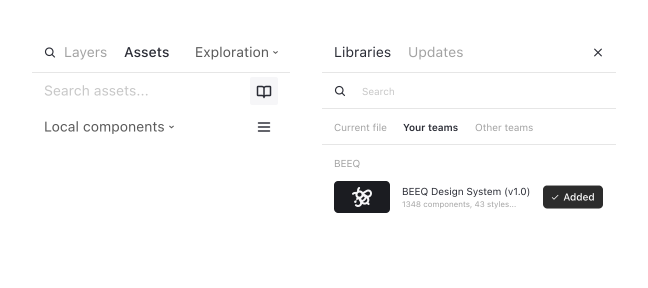
Theming and brand customization
BEEQ is built to be white-labelled. In Figma, brand customization happens through Figma Variables — change a token in the Theme Collection and every component that references it updates automatically.Figma Variables: three collections
BEEQ color tokens use Figma’s variable capability and are split into three linked collections. Knowing which one to edit — and which to leave alone — is the key to customising without breaking anything.
The three Figma Variable collections that make up BEEQ's color system
Building your color palette
When using BEEQ on client projects, it’s usually required to adhere to the client’s brand guidelines. Those guidelines typically focus on the physical aspects of the brand — stationery, print materials — rather than digital. You’ll need to expand them to cover all the semantic color slots BEEQ uses before you can customise the system.

Create a color palette for your brand
1
Create palettes for your theme
Build each of the following scales before opening Figma Variables:
- Brand palette — a full light-to-dark scale for the primary brand color
- Accent palette (if needed) — the same light-to-dark scale for a secondary highlight color. In BEEQ’s default theme the accent slot is unused
- Neutral palette — a custom grey scale, if the brand specifies its own neutrals. Leave this out to keep BEEQ’s defaults
- System colors — shades for success, warning, error, and info
- Data colors — a set of distinct hues for charts and graphs
2
Apply to Figma Variables
Substitute the default colors from the Theme Variables, or introduce a new Mode for multi-theme projects, using the Local Variables Panel. Then follow the Changing brand colors steps below to wire up the specific brand variables.
Changing brand colors
There are three brand color variables you’ll need to update for any client or product:
To change them: open the Theme Collection in Figma Variables, find the brand variables, and update the value to a hex code or pick a swatch from the Primitive Collection.

Figma doesn’t currently support Typography variables, so color is the only way to theme BEEQ in Figma. Typography customization is handled at the code level through CSS variables.
Going beyond colors
If a project requires more than just color changes — say, a rounder button corner radius — you can add custom tokens to the Theme Collection. Create a token (e.g.,button-roundness), assign different values per theme, then replace the default token on the component. The same pattern works for other properties like spacing and shadow.
Explore design foundations
The BEEQ visual language — colors, type, spacing, and the rest — is documented in the Foundations section. These pages describe the token values, the rules for using them, and the reasoning behind the choices.The why behind BEEQ’s visual decisions is covered on the Design principles page.
What to do next
- Browse Components to see all available building blocks, with interactive examples and usage guidelines.
- Explore Theming to understand how customization works beyond the basics.
- Review recent changes in the Changelog to stay up to date.
- Reach out at beeq@endava.com or open a discussion on GitHub if you get stuck or have a question.